How-to guide
Connect a provider
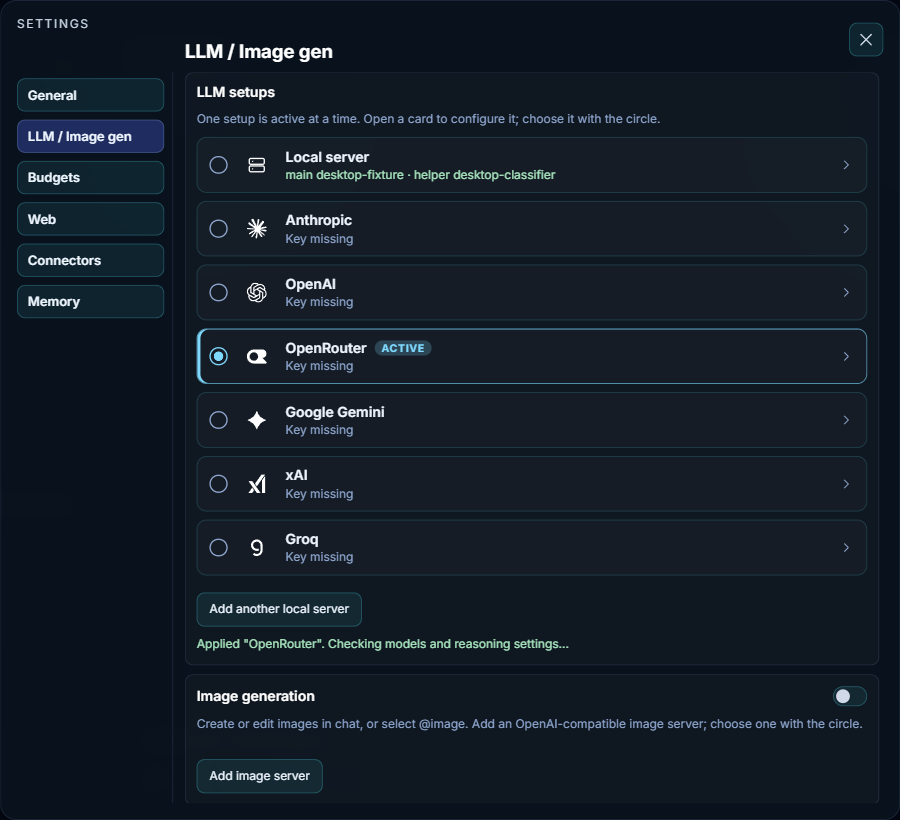
Nawa talks to a language model through a setup: a card on the LLM / Image gen tab of Settings. One setup is active at a time; the active one answers your chats, runs the coder, and serves the helper that classifies and screens content.
Open Settings (Edit → Settings… in the title bar, or Ctrl+,) and choose LLM / Image gen. The LLM setups list shows one card per provider and one per local server. Click a card's name to open its form; this also makes it the active setup, and clicking the name again closes the form. The circle at a card's left makes a card the active setup without opening it.
A cloud provider
The cards Anthropic, OpenAI, OpenRouter, Google Gemini, xAI and Groq each hold a key, a connection test, one model, its temperature, and its reasoning level. That one model serves everything the setup does, and the card says so.
- Click the provider's name to open its card. Its status reads Key missing until a key is saved.
- Paste your API key. The key is stored in Nawa's encrypted account storage; the page keeps only a reference to it, rather than returning the saved key. Entering a new key still sends it to the settings endpoint, and the server uses it to authenticate with the provider.
- Press Test connection. Nawa lists the models the provider offers and measures the model's context window and capabilities.
- Pick the model. Long model lists have a search box at the top of the dropdown; type part of the name.
- Set the temperature and the reasoning level if the model offers one. The dropdown opens past the card's edge when the list is long.
The card's status now names the model chosen "for everything", and the setup is ready.
A local server
The Local server card holds a name and the three roles Nawa uses as rows:
- Main carries the connection: the server type (vLLM, or LM Studio and any OpenAI-compatible server), the server URL, an optional key, temperature, and the connection test. It answers chats and orchestrates tools.
-
Coding and Helper default to Same as main. Give either its own model when your server hosts several — a larger model for coding, a small fast one for the helper that classifies and screens content.
-
Click Local server to open the card, and give it a name that tells the servers apart.
- Enter the server URL, for example
http://127.0.0.1:8000/v1, and a key if the server requires one. - Press Test connection. Nawa fetches the model list; choose the main model, then the coding and helper models or leave them at Same as main.
Add another local server creates a second card for a second server; Remove this server removes the card you are on, as long as one local card remains. Switching cards switches every role at once.
An image server (optional)
Image generation holds separate saved servers for creating and editing images through OpenAI-compatible /v1/images/generations and /v1/images/edits endpoints, including Qwen-Image-2.1. Changing the image server does not change the chat model.
- Press Add image server, then enter its name, server URL and API key if required. A base URL such as
http://aiserver-1:8330is enough; Nawa adds the API path. - Press Test connection to fetch the model list. If there is one image model, it is selected automatically; otherwise enter the model name.
- Optionally set Default size, Inference steps and Request timeout (seconds). Blank size and steps use the server's defaults. The request timeout defaults to 300 seconds.
- Choose the server with its circle and turn on Image generation. Add more cards to keep other servers saved. Remove server removes that card.
Ask normally, for example, "Create an image of a blue paper boat on calm water." Or type @image (available in the mention menu) to explicitly request image generation. The model can specify size, steps, seed, image count, format and a transparent background when the server supports them. The generated files are saved under images/ in the chat's workspace and displayed in the answer.
To edit, follow up with a request such as "Make the boat red and keep everything else the same." Nawa sends the referenced image to the editing endpoint rather than recreating it from a description. You can also attach an image or combine several references. Each edit saves a new file, preserving the originals. Edits use the server's reference aspect-ratio default unless a size is requested. Images appear as smaller previews in answers; click one to enlarge it.
Turning the section off removes the image tool from new turns without deleting saved servers. If you explicitly request @image while it is off, Nawa can inspect that setting and explain what needs enabling. Plan mode does not create or edit images.
A decision model (optional)
Below the setups, Fast decisions holds an optional classifier that answers typed questions. When requested by the main model, Nawa uses it to rank search results, skills, or plugin catalogue entries. Browser actions use the main model directly, regardless of this setting.
Two cards are offered, chosen with their circles like the setups:
- Jev by TypeSafe — a key of its own, or Through OpenRouter using the key saved on the OpenRouter card.
- Laya — a server URL (the default is a local fleet at
http://127.0.0.1:8080) and a key only if that server asks for one.
Open a card by its name, which also makes it the card in use, and press its Test connection; its status turns to Ready · laya (or the model Jev reports). Then switch the section on with the switch in its heading. A card can be tested while the switch is off — its status then says Off · server saved — but nothing consults it until the switch is on.
What the decision model contributes, and what it does not, is described in Decisions beside the LLM and in the settings reference.
Check which setup is active
The active card is marked Active. The composer's context gauge at the bottom of the chat names the model in use for the open chat. A chat started under one setup keeps using the setup that is active when each turn begins; switching cards affects the next turn.